Use these dialog boxes to configure all input data items required to both train the neural network and generate load forecasts (once the definition is associated with a specific meter or meter group).
To Configure Input Data Items for a Neural Network
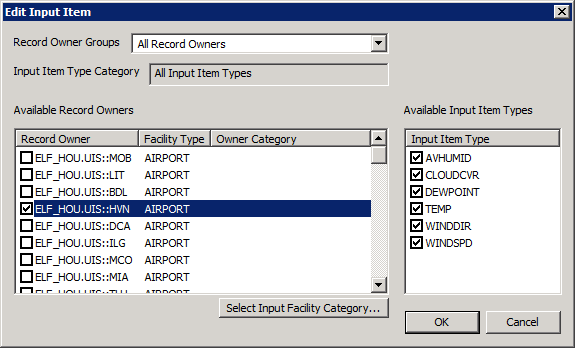
Use the Edit Input Item dialog box to identify the Record Owner IDs whose input data item types are to be used as inputs to this neural network. Once Record Owner IDs have been selected, indicate which Input Data Item Types associated with each data record are to be included as neural network inputs.
The properties on the Edit Input Item dialog box are described below.
| Parameter | Description |
|---|---|
|
Record Owner Groups |
Select the desired Record Owner Group from the drop-down menu. |
|
Input Item Type Category |
Displays All Input Item Types or the Input Item Type Category for the selected Input Item Type. |
|
Available Record Owners |
Select the Record Owners whose data items can be used as inputs to this neural network. |
| Select Input Facility Category |
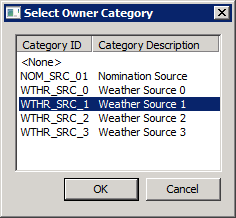
Click Select Input Facility Category to associate an input owner category ID with a selected record owner.
|
|
Available Input Item Types |
Select the Input Item Types whose data items can be used as inputs to this neural network. |
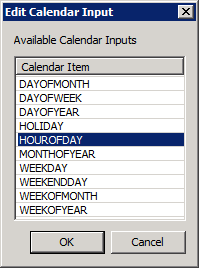
Specify the applicable calendar inputs that will be used as for neural network training. The chosen calendar category inputs will use the timestamp of each input value entry to provide a True or False input to a training calculation.
A "lag effect" must be defined as a time offset, into the past, from which to read input data values.
For example, an input data item of “ambient temperature” may be specified as input to a neural network definition causing its historical values to be used for neural network training and its forecast values to be used for forecasting. However, the ability to add an additional input data item, also associated with “ambient temperature” values, but given a lag effect offset (7 days, for example), must also be provided. Providing a time lagged input value can provide significant improvements to the forecasting accuracy in the case when an input data item’s values have some correlation to what the value was in the recent past.
The input data values used for neural network training that are associated with this additional, lagged input data item must be retrieved from the historical datastore with a timestamp 7 days earlier, in this example, than the hour specified for the other non-lagged input data values specified. Likewise, when calculating a neural network forecast, values for the lagged input data item must be retrieved from the historical datastore with a timestamp 7 days earlier, in this example.
Interestingly, the time offset limits the time range into the future of 7 days, in this example, that a forecast can be generated since historical data does not exist passed today. To allow the forecast to be calculated further into the future than the interval specified for the lagged input data item, an option is provided that, when enabled, switches to use forecasted values as lagged input instead of historical values when the historical values become no longer available.
When specifying input data values from the Historical Gas Load store, a lag effect must be configured. Lag effect specifications can also be optionally configured for ordinal input data values sourced from the Historical Input or Forecast Input datastores.
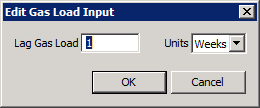
The properties on the Gas Load Input dialog box are described below.
| Parameter | Description |
|---|---|
|
Lag Gas Load |
Specify a time offset, into the past, from which to read input data values. |
|
Units |
Select the units for the time offset from the drop-down menu. Options include Hours, Days, Weeks, or Years. |

|
|
|